
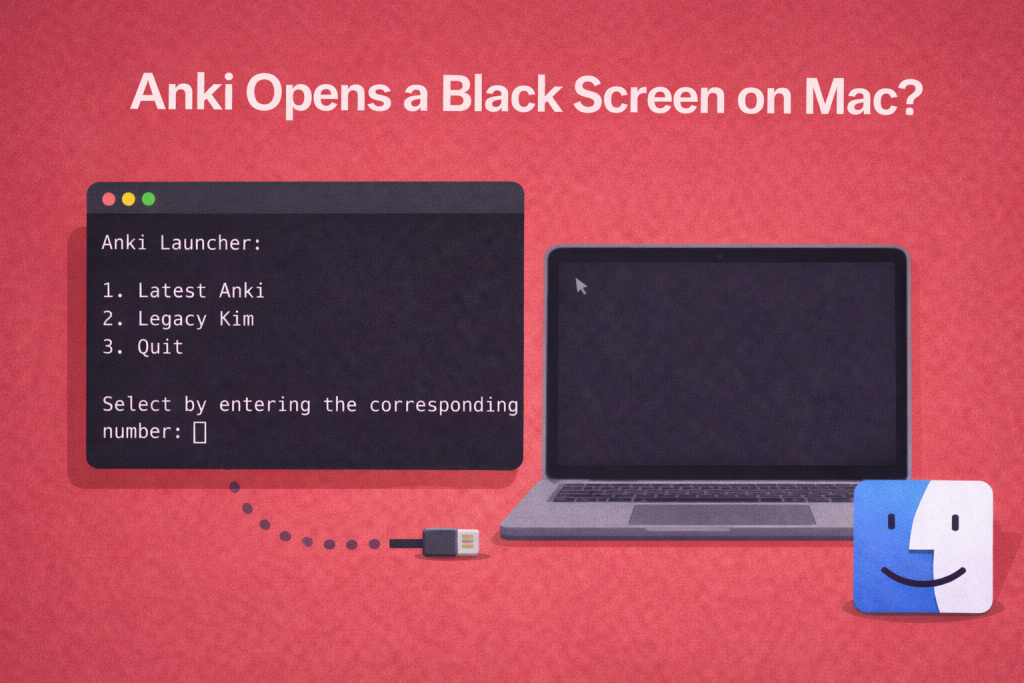
You finally sit down to study your language flashcards. You double-click the Anki icon — and instead of the familiar grey interface, a black Terminal-style window appears with a menu. No flashcards. No audio. Just a dark screen and a blinking cursor.
Sound familiar?
If you’re on a Mac and experiencing this, you’re not alone — and more importantly, you haven’t done anything wrong. This is a known behavior introduced in newer versions of Anki, and the fix is remarkably simple. This article will walk you through exactly what’s happening and how to get back to learning in under a minute.
What Is That Black “Anki Launcher” Window?
When Anki released versions from 25.07 onwards for macOS, they introduced a new “Launcher” system. Instead of Anki opening directly, a black Terminal-style window appears first — it’s actually a menu waiting for your input, not a crash or error.
This confused a lot of learners. In fact, one of our own Speakada community members, Marina, was studying German and nearly gave up entirely when she saw this screen. She assumed the app was broken and that she’d need to spend extra money to get her flashcards working on her phone. Neither was true.
The Anki developer forums confirmed this was catching out Mac users across the board. The software is installed and working — it just needs one key press to complete the setup.

The Fix: How to Get Past the Anki Black Screen on Mac
This takes about 10 seconds:
- Open the black Anki Launcher window (if it’s not already open, double-click the Anki icon in your Applications folder)
- Type the number
1on your keyboard — this selects “Latest Anki” from the launcher menu - Press
Enter - The launcher will install the standard Anki app, the black window will close, and the normal grey Anki interface will open
That’s it. You’re in.
This fix applies no matter which language you’re studying. Whether you’re using Anki Spanish Flashcards, Anki German Flashcards, Anki French Flashcards, Anki Italian Flashcards, Anki Dutch Flashcards, Anki Polish Flashcards, or Anki English Flashcards — if you’re on Mac and hit this screen, this fix is for you.
You Do NOT Need to Pay for the iOS App
One of the most common misconceptions that comes up alongside this issue is the belief that you need to pay for the iOS version of Anki (which costs around €25–€30) in order to study on your phone or tablet.
You don’t. Here’s the completely free workflow:
- Use the desktop app to import your
.apkgflashcard file (you only need to do this once — double-click the file after downloading it from your order email, and it will load automatically into Anki) - Click “Sync” inside the Anki desktop app
- From that point on, go to ankiweb.net in any browser — including your iPhone’s Safari — and access your cards for free, forever
After that first sync, you never need to open the desktop app again. AnkiWeb keeps everything updated across your devices automatically.
This is part of how Anki works to learn a language better — the spaced repetition system tracks your progress in the cloud, so every review session counts whether you’re on your Mac, PC, or phone.
Why This Matters: Setup Friction Kills Language Learning Momentum
We talk a lot about spaced repetition and why Anki is good for learning, but there’s an underappreciated obstacle that stops learners before they even get started: setup friction.
When technology gets in the way — even briefly — it’s easy to interpret that friction as a sign that “this isn’t going to work for me.” Marina felt that. Plenty of others have too.
But the reality is that once Anki is set up, it becomes one of the most efficient language learning tools available. Whether you’re working on Pronunciation Flashcards, Vocabulary Flashcards, or Grammar Flashcards, the system does the hard work of deciding what to review and when — so you spend your energy actually learning, not managing a study schedule.
Don’t let a black screen on first launch be the reason you stop.
A Step-by-Step Recap: Getting Your Speakada Flashcards Running on Mac
Here’s the complete flow from download to studying — especially useful if you’re new to Anki:
Step 1 — Download Anki Go to apps.ankiweb.net and click the blue Download button for Mac. Choose the Apple Silicon version if you have an M-series Mac, or the Intel version otherwise.
Step 2 — Get Past the Launcher If the black Launcher window opens, type 1 and press Enter. The normal grey Anki interface will open.
Step 3 — Import Your Flashcard File Find the .apkg file you received with your Speakada order (check your email). Double-click it. Anki will open and import the deck automatically.
Step 4 — Sync to AnkiWeb Create a free account at ankiweb.net, then click “Sync” in the Anki desktop app. Your cards are now in the cloud.
Step 5 — Study Anywhere, for Free Open Safari (or any browser) on your iPhone or iPad. Go to ankiweb.net, log in, and study your cards. No app purchase needed.

What to Do If You’re Still Stuck
If you’ve followed the steps above and something still isn’t working, please reach out before giving up.
When Marina contacted our team, we went through the official Anki developer forums line by line to understand exactly what was happening and why. That’s the kind of support we believe every learner deserves — not a canned response, but someone actually digging into the problem.
You can reach us at info@speakada.com, or visit our About Speakada Anki Flashcards page to learn more about how our decks work.
Want More Tips Like This? Subscribe to Speakada Weekly
If you found this helpful, you’ll love Speakada Weekly — our free newsletter packed with practical Anki tips, language learning strategies, and the kind of fixes and insights that don’t always make it into a blog post.
We share things like:
- How to get the most out of spaced repetition without burning out
- Smart ways to combine Pronunciation Flashcards, vocabulary, and grammar study
- Real stories from the Speakada community (like Marina’s!) that show you what’s possible
👉 Subscribe to the Speakada Newsletter — it’s free, and you can unsubscribe any time.
Explore Speakada Flashcard Decks for Your Language
If you’re just getting started or looking to expand your study set, here are our most popular deck collections by language:
- 🇪🇸 Best Spanish Anki Decks That You Need Now
- 🇫🇷 Best French Anki Decks That You Need Now
- 🇮🇹 Best Italian Anki Decks That You Need Now
- 🇩🇪 Best German Anki Decks That You Need Now
- 🇳🇱 Best Dutch Anki Decks That You Need Now
- 🇵🇱 Best Polish Anki Decks That You Need Now
- 🇬🇧 Best English Anki Decks That You Need Now
Each collection includes Pronunciation Flashcards, Vocabulary Flashcards, and Grammar Flashcards — everything you need to build a complete foundation in your target language.

Make Flashcards Online to Learn Spanish Now One of the biggest challenges when learning Spanish is figuring out how to Read more
Most language learners aim for 10 Anki cards per day — but is that right for you? Discover the 3 Read more

Cloze Deletion Anki Guide - My Experience and What I Use Now In this article, I'm going to be talking Read more
Grammatical Gender and How to Learn Gender Nouns With Anki Recently we were asked a question about the use of Read more